YouCine on TV: How to Install It on Any Device in 2026

Getting YouCine on TV transforms your streaming experience completely. Instead of watching on a small phone screen, you get full 4K content on a big display, with better sound, shared viewing, and zero buffering interruptions.

The good news is that installation is simpler than most people expect. Whether you have an Android TV, a Fire TV Stick, or a Samsung and LG Smart TV, there is a working method for every device.

This guide covers every installation method step by step. No technical experience needed, just follow the steps for your device and you will be streaming in under five minutes.

What Is YouCine and Why Watch It on TV?
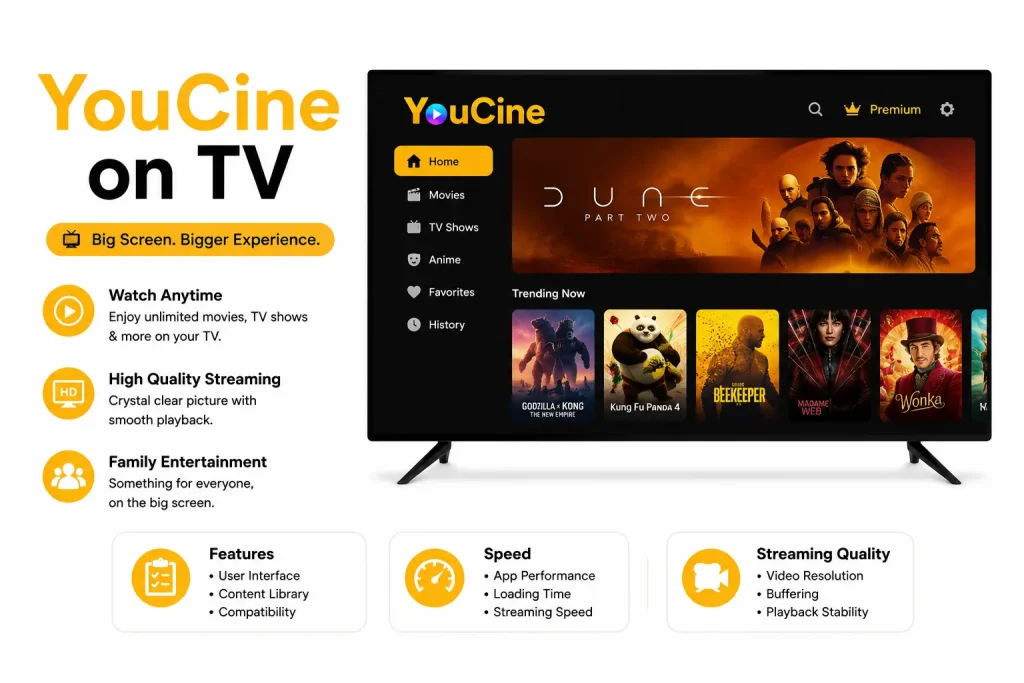
YouCine on TV

YouCine is a free Android streaming application that gives users access to movies, TV shows, anime, live sports, and live TV channels, all without a subscription or account. It supports HD, Full HD, and 4K streaming quality.

Watching it on a big screen takes the experience to a completely different level.

What Makes the TV Experience Better Than Mobile?

Streaming YouCine on TV delivers benefits a phone simply cannot match:

  • Bigger screen: 4K content looks significantly better on a 40–75 inch display
  • Shared viewing: Watch with family or friends without crowding around a phone
  • Stable playback: Smart TVs and TV boxes handle long streaming sessions without battery warnings or interruptions
  • Better audio: TV speakers and soundbars deliver far richer sound than phone speakers

Which TV Devices Support YouCine?

YouCine on TV works across these devices:

  • Android TV: Sony, Xiaomi, TCL, Hisense, Philips
  • Amazon Fire TV Stick: all generations including 4K Max
  • Android TV Box: Nvidia Shield, X96, H96 Max
  • Non-Android Smart TVs — Samsung, LG: via external streaming stick only

Samsung (Tizen OS) and LG (webOS) do not support direct APK installation. A Fire TV Stick or Android TV box plugged into the HDMI port is the best workaround for these TVs.

How to Install YouCine on Android TV?

Android TV is the simplest device for this installation. Two reliable methods work in 2026.

Method 1 (Direct Browser Download)

Use this method if your Android TV has a built-in browser like Chrome or Firefox.

  • Open Settings on your Android TV.
  • Go to Security and Restrictions or Device Preferences.
  • Enable Install Unknown Apps and allow your browser.
  • Open the browser and visit the official YouCine website.
  • Click the Smart TV / TV Box download button.
  • Wait for the APK file to finish downloading.
  • Open your File Manager, go to the Downloads folder.
  • Tap the YouCine APK file and select Install.
  • Wait for installation to complete, then tap Open.

Delete the APK file after installation to free up storage space on your device.

Method 2 (Using the Downloader App)

Use this method if your Android TV does not have a built-in browser.

  • Open Google Play Store on your Android TV.
  • Search for Downloader by AFTVnews and install it.
  • Go to Settings → Device Preferences → Security.
  • Enable Unknown Sources for the Downloader app.
  • Open Downloader and enter the official YouCine APK URL.
  • The file will download automatically — tap Install when prompted.
  • Tap Delete after installation to remove the APK installer file.
  • Find YouCine in your apps list and start streaming.

Both methods take under five minutes on a standard Android TV with a stable internet connection.

How to Install YouCine on Fire TV Stick?

Fire TV Stick does not support direct Play Store installs for third-party apps. The Downloader method is the most reliable approach.

Step 1 (Enable Unknown Sources)

  • Go to Settings on your Fire TV Stick home screen.
  • Select My Fire TV.
  • Tap Developer Options.
  • Turn on Install Unknown Apps.
  • Find Downloader in the list and enable it specifically.

Skipping this step will block the installation completely. Do this before downloading anything.

Step 2 (Download and Install via Downloader)

  • Go back to the Fire TV home screen.
  • Search for Downloader in the Amazon Appstore and install it.
  • Open Downloader and select the URL input field.
  • Type the official YouCine APK download URL and tap Go.
  • The APK will begin downloading automatically.
  • When the download finishes tap Install on the prompt.
  • Tap Done once installation completes.
  • Select Delete to remove the installer file and save storage.

YouCine on TV via Fire TV Stick runs smoothly on all generations including the Fire TV Stick 4K Max, which supports full HD and 4K playback.

Install YouCine on Samsung or LG Smart TV

Samsung and LG Smart TVs run their own operating systems. Samsung uses Tizen and LG uses webOS. Neither supports direct APK installation.

Why Do These TVs Block APK Installation?

Samsung and LG lock their systems to approved app stores only. YouCine is a third-party app not listed in any official store. This means sideloading directly onto these TVs is not possible in 2026.

Best Workaround Using a Streaming Stick

The cleanest solution is plugging a Fire TV Stick or Android TV box into your TV’s HDMI port.

  • Plug your Fire TV Stick or Android TV Box into any open HDMI port.
  • Switch your TV input to that HDMI source.
  • Follow the Fire TV Stick installation steps from Part 1.
  • Launch YouCine from the streaming stick’s app list.
  • Use your TV remote or the stick’s remote to navigate.

This method works on every Samsung and LG model regardless of year or screen size. YouCine on TV through an external stick delivers the same full 4K experience as a native installation.

YouCine on TV Not Working? Fix These Issues First

Most problems after installation fall into two categories. Both are easy to resolve.

App Not Showing on Home Screen

If YouCine installed successfully but does not appear on your home screen:

  • Go to Settings → Apps → See All Apps on your device.
  • Find YouCine in the full app list.
  • Select it and choose Add to Home Screen or Pin to Favorites.
  • If it still does not appear, install Sideload Launcher from the Play Store.
  • Open Sideload Launcher — it shows all manually installed apps automatically.

This issue is common on Android TV boxes where sideloaded apps do not auto-pin to the launcher.

Buffering or Low Quality Fix

Buffering on YouCine on TV is almost always a network or settings issue — not an app problem.

  • Switch your router to 5GHz Wi-Fi instead of 2.4GHz for faster speeds
  • Move your TV box or streaming stick closer to the router
  • Lower the stream quality inside YouCine settings from 4K to 1080p temporarily
  • Close all background apps running on your TV box
  • Restart the YouCine app fully and reselect the stream source

A stable connection of at least 10 Mbps is recommended for smooth 1080p playback. For 4K streaming, 25 Mbps or above is ideal.

Is It Safe to Use YouCine on TV?

YouCine is a third-party app. It is not verified by Google, Amazon, or any TV manufacturer. Using it safely comes down to two things — where you download it and how you stream.

Download Safety Tips

Follow these rules every time you install or update YouCine:

  • Never install APK files from random search results or unverified links
  • Delete the APK installer file immediately after installation
  • Check the version number before installing
  • Run a quick antivirus scan on your TV box if you are unsure about the source

Should You Use a VPN?

A VPN is strongly recommended when streaming through YouCine on TV.

  • Your ISP can monitor and log the content you access through third-party apps
  • A VPN encrypts your traffic and keeps your streaming activity private
  • It also helps bypass regional content restrictions on certain titles
  • Use a VPN with a no-logs policy and fast server speeds for uninterrupted streaming

YouCine itself does not require personal information or account registration. A VPN adds an extra layer of protection on top of that.

Final Verdict

YouCine on TV is one of the best free ways to enjoy movies, live sports, and TV shows on a big screen in 2026. Android TV and Fire TV Stick users can install it in under five minutes. Samsung and LG users need an external streaming stick, but the process is equally simple once that is in place.

The app runs stably on Android 8.0 and above, supports 4K playback, and requires no subscription or account to use.

FAQs

Only if your TV runs Android OS natively — like Sony, TCL, or Xiaomi Smart TVs. Samsung and LG TVs require an external device such as a Fire TV Stick or Android TV box connected via HDMI.

Yes. YouCine works on all Fire TV Stick models including the standard Stick, Stick 4K, and Stick 4K Max. The 4K Max delivers the best playback quality for HD and 4K content.

YouCine is a third-party streaming app that is not listed on the Google Play Store or any official app store. It must be installed manually as an APK file through sideloading.

YouCine does not update automatically on TV devices. Download the latest APK from the official website and install it over the existing version. No uninstall is needed before updating.

Yes. YouCine on TV is completely free. It requires no subscription, no account registration, and no payment to access movies, TV shows, live sports, or live TV channels.

Similar Posts

Leave a Reply

Your email address will not be published. Required fields are marked *