
YouCine TV Box Guide: Which Android Boxes Work, and Which to Avoid
A YouCine TV box setup is the most reliable way to run the app on a television. It is also the answer for anyone with a Samsung or LG set, because those televisions cannot install Android apps at all.
But there is a decision to make before the install, and it matters more than anything in the setup process: which box you buy. Get that wrong and the app is the least of your problems.
Quick answer
YouCine installs on any Android TV or Google TV box using the Downloader app or a USB stick. Buy a Google-certified box — Nvidia Shield, Xiaomi TV Box, Chromecast with Google TV or a Walmart Onn. Avoid cheap no-name boxes from online marketplaces: a documented malware campaign called BadBox ships preinstalled on exactly those devices, and Brazil has been the worst-affected country.
Why a TV Box at All?
Three situations where a box is the right answer.
- You have a Samsung or LG television. Those run Tizen and webOS, which cannot install an Android APK by any method. No setting, no USB trick, no guide changes that. A box is not a preference here, it is the only route.
- Your TV runs Android but is slow. Built-in Android TV on budget sets is often underpowered and the app stutters. A separate box with a decent processor fixes it.
- You want it on more than one TV. A box moves between rooms; a smart TV does not.
Which Smart TVs can actually run YouCine
Before You Buy: The Cheap Box Problem
This is the part most guides skip, and it is the most important thing on this page.
Search any online marketplace for an Android TV box and you will find dozens at thirty dollars or less, advertised with impressive specifications — 8K output, the latest Android version, huge amounts of RAM. Many of those specifications are simply false. That is the mild version of the problem.
An infected box does not look broken. It works fine as a streaming device. In the background it is being used to route other people’s internet traffic, commit advertising fraud, and in some cases intercept two-factor authentication codes — on your home network, alongside your phone and your laptop.
How to check whether a box is certified
Certification is the single check that matters, and it takes ten seconds on a box you already own:
Open the Play Store ▸ menu ▸ Settings ▸ About ▸ Play Protect certification
It will say certified or uncertified. If a box you already own says uncertified, that is not proof it is infected — but it does mean the device never passed Google’s security requirements and it is in the category being targeted.
The Best YouCine TV Box Options
All of these are Google-certified, all run YouCine without trouble, and all are worth the difference over a no-name box.
|
Box |
Best for |
Worth knowing |
|
Nvidia Shield TV / Shield Pro |
The best performance available |
Expensive, but the fastest option by a wide margin and supported for years. Also runs a Plex server. |
|
Xiaomi TV Box / Mi Box |
The sensible middle |
Certified, affordable, widely available including in Brazil. The default recommendation for most people. |
|
Chromecast with Google TV |
Simple setup, good interface |
Limited internal storage — sideloading several apps fills it quickly. |
|
Walmart Onn 4K / 4K Pro |
Best value if you can get one |
Certified Google TV at a very low price. Availability is region-limited. |
|
Amazon Fire TV Cube / Stick |
Amazon ecosystem |
Fire OS rather than Android TV, so sideloading works differently — see our Fire Stick guide. |
Installing YouCine on an Android TV Box
Three methods. The first is the one most people should use.
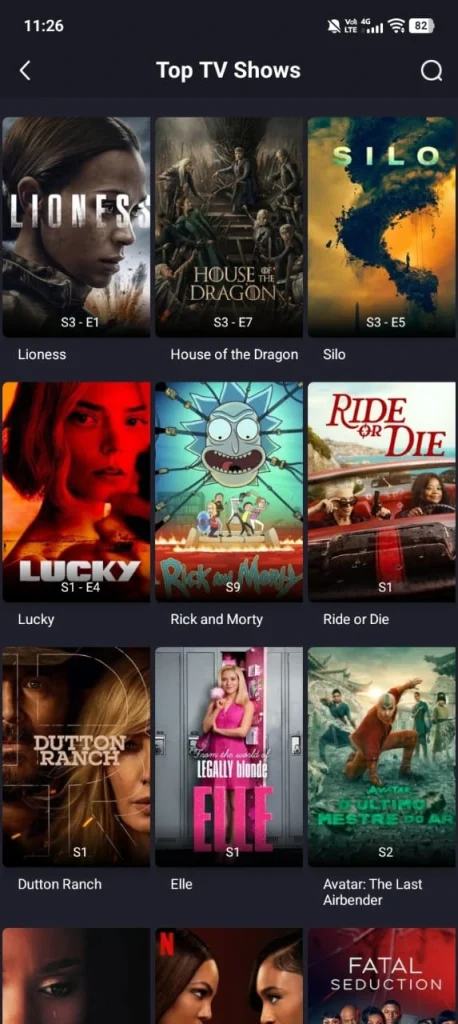
Method 1 – Downloader app (easiest)
- Open the Play Store on the box and install Downloader by AFTVnews.
- Open Downloader and enter the download URL for the APK in the address field. Take it from the download page rather than typing a half-remembered address.
- Let the file download, then select Install when prompted.
- The box will ask permission to install from this source the first time. Allow it for Downloader specifically.
- Delete the APK file once installed — Downloader offers to do this and there is no reason to keep it.
Method 2 – USB stick
- Download the APK on a computer and copy it to a USB stick.
- Plug the stick into the box.
- Install a file manager from the Play Store if the box does not have one, then open the USB drive.
- Select the APK and install.
Slower, but it works on boxes with no browser and it lets you verify the file hash on the computer before transferring — which is the right order to do things in.
Method 3 – Send from your phone
Apps such as Send Files to TV move an APK from a phone to a box over the local network, which avoids both the USB stick and the on-screen typing. Install it on both devices, send, then install on the box.
Allowing Installation from Unknown Sources
Android TV handles this per-app rather than as one global switch, which confuses people coming from a phone.
Settings ▸ Device Preferences ▸ Security & Restrictions ▸ Unknown sources
You will see a list of apps. Enable the one you are installing from — Downloader, or your file manager. You do not need to enable everything, and you should not.
On Google TV the path is similar but the menu names differ slightly by manufacturer. Look for Security or Apps in Settings.
Three Settings That Improve Playback
- Use Ethernet if the box has a port. This makes a bigger difference on a TV box than almost anything else. Streaming boxes often have weak Wi-Fi antennas, and a wired connection removes the most common cause of buffering in one step.
- Check the display output setting. A box forcing 4K output to a 1080p panel produces a black screen with audio playing — which people then blame on the app. Set the output resolution to match the television.
- Watch the storage. Many boxes ship with 8 GB, of which a fraction is usable. Offline downloads fill that fast. A USB drive formatted as adoptable storage solves it on most Android TV boxes.
Navigating with a Remote
The app is designed for touch first, and some builds are awkward with a directional pad. Two things help.
An air mouse remote — a remote with pointer control, around ten to fifteen dollars. It turns awkward navigation into normal navigation and is the single best accessory for sideloaded apps on a TV.
The Google TV or Android TV remote app on your phone — free, and it gives you a proper keyboard for search, which is far quicker than on-screen typing.
If the App Does Not Appear After Installing
Sideloaded apps frequently do not show in the main home row. This is normal and the app is installed.
Settings ▸ Apps ▸ See all apps
Open it from there. Most launchers let you add it to the home row afterwards; if yours does not, a replacement launcher from the Play Store will.