
How to Use YouCine: A Complete Beginner’s Guide
Learning how to use YouCine properly takes about ten minutes. Installing it is the easy part — getting it set up so it plays smoothly, shows subtitles in the right language and does not eat your mobile data is the bit most people skip.
This walks through every tab, the player controls that matter, and the handful of settings worth changing before you watch anything.
Quick answer
How to use YouCine: after installing, the app opens straight to a home screen with no account or sign-up required. Content is organised into tabs — home, live TV, sports and downloads — with a search function across all of them. Before watching, set your preferred subtitle language, choose a default video quality to match your connection, and turn on the parental block if children use the device.
First Launch: What to Expect
Three things happen the first time you open it, and none of them are a problem.
Permission. The app will ask for storage access. Grant it — it needs this to save offline downloads and cache. It should not ask for anything beyond storage and network access. If it asks for contacts, SMS, camera or accessibility permissions, close it, uninstall it, and download again from a source that publishes a file hash. That build has been repackaged.
No sign-up. There is no account, no email and no login. If a version prompts you to register or pay, it is not this app.
Content loads by region. The app checks your IP address and populates the rows accordingly, so what you see depends on where you are. On a slow connection this takes twenty or thirty seconds and a blank screen at that stage is normal.
The Tabs, Explained
Navigation sits along the bottom on a phone and down the left on a TV. Names vary slightly between builds, but the structure is consistent.
|
Tab |
What is in it |
Worth knowing |
|
Home |
Featured titles, recently added, recommended rows |
Recommendations are based on what you have opened, so it improves after a few sessions |
|
Trending / Popular |
What other users are watching most |
The most reliable place to find something that actually plays — popular titles have more working sources |
|
Live TV |
Live channels grouped by category |
Availability varies by region and changes constantly |
|
Sports |
Live fixtures and sports channels |
The least reliable section, especially during major events |
|
Downloads |
Titles you have saved for offline viewing |
Downloads live on your device, so clearing app data deletes them |
|
Search |
Search across everything |
Try shortened names — sources label titles inconsistently |
What is actually in the Live TV section
Finding Something to Watch
Two approaches, and the second one is faster once you know it.
Browsing
Scroll the home rows and open a category to see everything in it. Most builds offer filters inside a category — genre, release year, language, subtitle availability. If you are looking for something specific this is slower than searching, but it is how you find things you did not know existed.
Searching
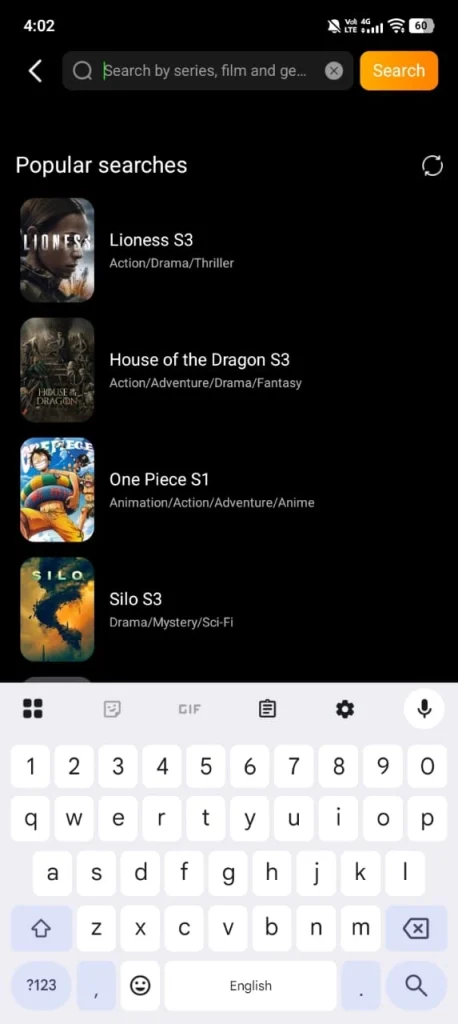
Faster, with one caveat: titles are labelled by whoever indexed the source, so spelling varies. If a full title returns nothing, search two or three words of it instead. Searching an actor or director name also works on many builds.
The habit that saves the most frustration
A title appearing in search is not the same as a title that plays. Before you settle in, open it and confirm it starts. If it spins for more than about twenty seconds, that source is down — go back and pick a different entry rather than waiting.
Player Controls Worth Knowing
Tap once anywhere on the video to bring up the controls. Four of them matter.
|
Control |
What it does |
When to change it |
|
Quality / resolution |
Sets the stream resolution |
Drop it the moment buffering starts. Auto is fine on Wi-Fi, poor on mobile data. |
|
Decoder (hardware / software) |
Which chip decodes the video |
Switch to software if you get a black screen with audio playing |
|
External player |
Opens the stream in VLC or MX Player |
When the built-in player will not handle a file, or you want better subtitle control |
|
Server / source selector |
Picks between multiple sources for the same title |
First thing to try when a title will not start |
Subtitles and Audio Language
Subtitles are off by default on most builds, which surprises people watching international content.
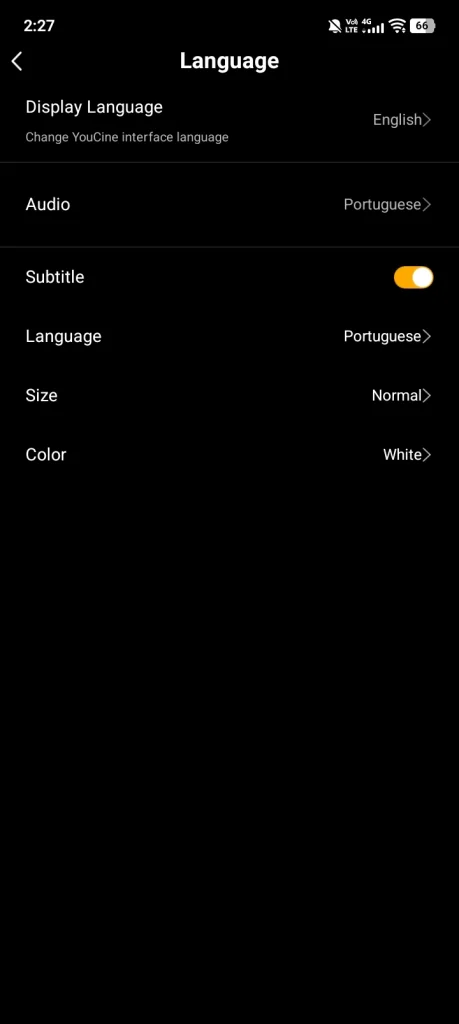
- Start playback, then open the player settings.
- Find the subtitle track selector and choose your language. Only languages the source actually carries will be listed – if the list is empty, that particular source has no subtitle track and no setting adds one.
- If subtitles run ahead or behind the dialogue, use the sync offset control. A second or two of adjustment fixes most mismatches.
- Font size and colour are adjustable on most builds, which is worth doing once if you watch on a TV from across a room.
Audio tracks work the same way. Many titles carry both an original-language track and a dub, and the app does not always default to the one you want.
Downloading for Offline Viewing
Useful on a commute, and the feature most people set up wrong.
- Open a title and look for the download icon, usually near the play button.
- Pick a resolution before confirming. This is the step people skip — downloading everything at maximum quality fills a phone very quickly, and on a phone screen the difference is marginal.
- Downloads run in the Downloads tab. Keep the app open until they finish; Android suspends background downloads under battery optimisation and the file will stop silently.
- Finished downloads play from the Downloads tab with no connection required.
Favourites and Continue Watching
Adding titles to favourites is worth doing habitually, because search results are inconsistent between sessions — a title you found once may be harder to find again. Favourites persist; they are stored locally, so they survive a restart but not a data wipe.
Most builds also track playback position, so a partly-watched title resumes where you left it. This is per-device and does not sync anywhere.
Parental Controls
If children use the device, set this up before anything else. Most builds include an option to block adult categories behind a PIN.
- Open the app settings and look for parental controls, child mode or content filtering.
- Set a PIN that is not the device unlock code.
- Enable the adult content block and confirm it by trying to open a restricted category yourself.
Five Settings to Change on Day One
Two minutes, and they prevent most of the complaints people have about this app.
- Default video quality — set it manually rather than leaving it on auto if you use mobile data. Auto reaches for the highest bitrate your connection will briefly sustain, which is not the same as what it holds steadily.
- Subtitle language — set once so you are not doing it per title.
- External player — enable it. Even if you do not use it daily, having it available means a file the built-in player cannot handle is a two-tap fix rather than a dead end.
- Parental block — set it if anyone under 18 touches the device.
- Battery optimisation — exclude the app in your Android settings if you use offline downloads. Otherwise long downloads die when the screen locks.
How to Use YouCine on a TV or Fire Stick
Same app, different navigation. Three differences worth knowing.
- You move with the directional pad rather than tapping, so the player controls are reached by pressing down or centre during playback rather than tapping the screen.
- Text entry for search is slow with a remote. Most people find it quicker to use the remote app on their phone, which gives you a proper keyboard.
- Sideloaded apps often do not appear in the main home row on Fire TV. If you cannot find it after installing, look under Settings, then Applications, then Manage Installed Applications.