
How to Install and Use YouCine on Phone: Full Android Guide
Installing YouCine on phone is usually a two-minute job. On some phones it is, and on others the manufacturer has added a layer that stops it entirely — which is why so many people end up staring at an “App not installed” message with no explanation.
This covers the standard process, then the manufacturer-specific settings that block it on Samsung, Xiaomi and others.
Quick answer
Download the APK, allow your browser to install unknown apps when prompted, open the file and install. On Samsung phones running One UI 6.1.1 or newer you must first turn off Auto Blocker in Settings, Security and privacy — it blocks all sideloading by default and overrides the unknown sources permission. On Xiaomi phones you may need to be signed into a Mi account.
Check Three Things First
- Android version. Current builds need Android 5.0 or higher. Check under Settings, About phone, Software information.
- Free storage. You need noticeably more space than the file size, because Android unpacks the APK during installation. Under 500 MB free is asking for trouble.
- Any existing install. If you already have YouCine from a different source, uninstall it first. Android refuses to install over an app signed with a different certificate, and this is the single most common cause of “App not installed”.
How to Install YouCine on Phone: The Standard Method
- Download the APK from the download page. Your browser will warn you that this type of file can harm your device – that warning appears for every APK and is not specific to this one.
- Verify the file hash. Compare the SHA-256 of your downloaded file against the one published next to the download button. If they do not match, the file changed in transit delete it and download again. This takes a minute and it is the only real check available to you.
- Open the file. Use your notification shade, your Downloads folder, or a file manager.
- Allow the install. Android will ask whether this app is allowed to install other apps. This is per-app, not a global switch – you are granting it to your browser or file manager specifically.
- Confirm the permissions and install. Storage and network access are expected. Anything else is not – see the permissions section below.
- Turn the permission back off. Go back into the same setting and revoke it. There is no reason to leave your browser able to install apps.
Verifying the hash — 30 seconds
On a phone: install any free hash checker from the Play Store, point it at the downloaded APK, and read the SHA-256.
On a computer before transferring:
Windows: certutil -hashfile YouCine-v1.17.6.apk SHA256
Mac: shasum -a 256 YouCine-v1.17.6.apk
Compare against the hash on the download page. Almost nobody does this. It is the difference between hoping a file is what it claims to be and knowing.
Samsung: Auto Blocker Will Stop You
If you have a recent Galaxy phone and the install fails immediately with no useful explanation, this is almost certainly why – and it is not something the usual guides mention.
How to turn it off
Settings ▸ Security and privacy ▸ Auto Blocker ▸ toggle off
You may be asked to confirm with your PIN, pattern or biometrics. Menu wording varies slightly between One UI versions – on some it sits under “Additional security settings”.
After turning it off, run through the standard install again. You will still get the normal Android confirmation prompt, which is expected.
Xiaomi, Redmi and POCO
MIUI and HyperOS add their own steps, and they change between versions, so treat this as the shape of it rather than an exact path.
- You may be required to sign in to a Mi account before the system will install an app from outside the store. This catches out people who have never created one.
- There is usually a scan step and a short countdown before the Install button becomes active. Wait it out – it is not frozen.
- Some builds show a warning recommending you do not proceed. That is generic to sideloading, not specific to any file.
- If installs fail repeatedly, look for MIUI optimisation in Developer options. Turning it off resolves some install failures, though it also changes other system behaviour.
Other Manufacturers
|
Brand |
Where the setting lives |
Watch out for |
|
Settings ▸ Apps ▸ Special app access ▸ Install unknown apps |
Closest to stock Android. Usually the simplest. |
|
|
Oppo / Realme / OnePlus |
Settings ▸ Security or Privacy ▸ Install unknown apps |
Some builds add an extra confirmation and a delay. |
|
Vivo / iQOO |
Settings ▸ More settings ▸ Permission management |
May require disabling an additional protection prompt. |
|
Motorola / Nokia |
Settings ▸ Apps ▸ Special app access |
Near-stock, generally straightforward. |
|
Honor |
Settings ▸ Security ▸ More settings |
Extra confirmation dialogs on newer builds. |
|
Huawei (no Google services) |
Settings ▸ Security ▸ More settings |
App may work, but anything depending on Google services will not. |
If your phone is not listed, search your device settings for “unknown” or “install unknown apps” – every Android build has it somewhere.
The Play Protect Warning
At some point Android will tell you the app was not recognised and may be harmful. This appears for every sideloaded app that Google has not seen before, including entirely legitimate ones.
You can proceed by tapping “More details” and then “Install anyway”. But do that only if you have checked the hash. The warning is generic, which means it is not evidence the file is bad – and equally, it is not evidence the file is fine. Verification is what tells you that.
Permissions: What Is Normal
|
Permission |
Expected? |
Why |
|
Storage / files and media |
Yes |
Offline downloads and cache |
|
Network / internet |
Yes |
Streaming |
|
Install from unknown sources |
Yes, one-time |
A system prompt, not an app permission |
|
Contacts |
No |
A streaming app has no use for these |
|
SMS |
No |
Commonly requested by repackaged builds to intercept codes |
|
Camera / microphone |
No |
No legitimate purpose here |
|
Accessibility service |
No |
Grants extensive device control. Never grant this to a sideloaded streaming app. |
If the build you downloaded asks for anything in the lower half of that table, uninstall it. It is not the app described here — it has been repackaged by somebody else, and that is exactly the risk sideloading carries.
Verify the exact file we mirror before installing
After Installing
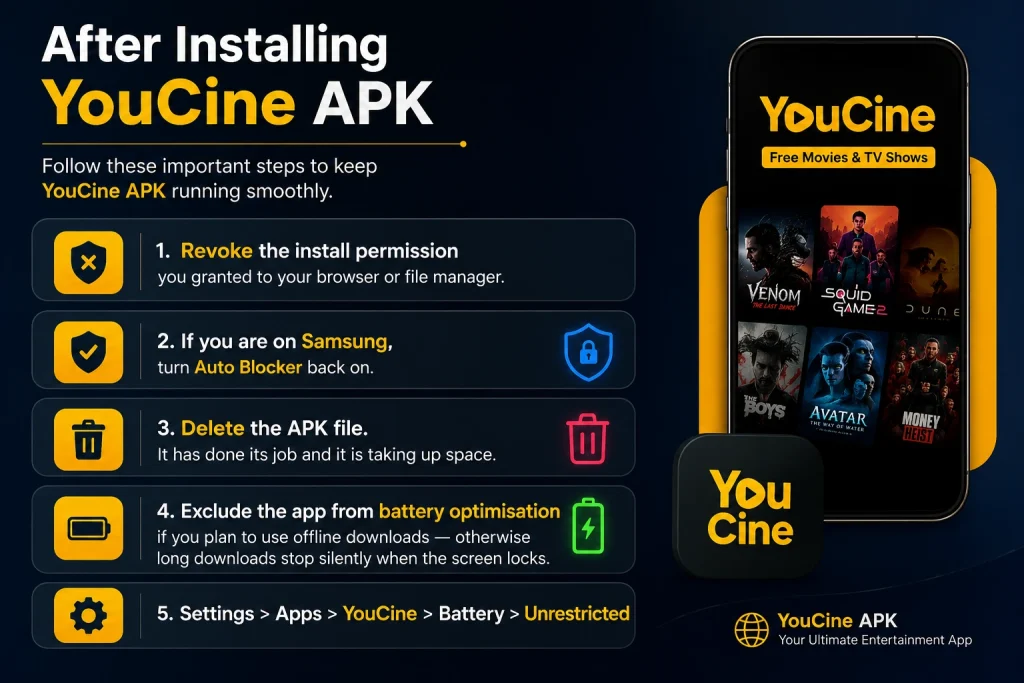
- Revoke the install permission you granted to your browser or file manager.
- If you are on Samsung, turn Auto Blocker back on.
- Delete the APK file. It has done its job and it is taking up space.
- Exclude the app from battery optimisation if you plan to use offline downloads — otherwise long downloads stop silently when the screen locks.
- Settings ▸ Apps ▸ YouCine ▸ Battery ▸ Unrestricted
Data Usage
Streaming video is the heaviest thing most phones do, and the app will not warn you.
- Set a default quality rather than leaving it on auto if you are on a metered plan. Auto reaches for the highest bitrate your connection will briefly sustain, which is not the same as what it holds.
- Download over Wi-Fi and watch offline for anything long. This is the single biggest saving available.
- Live channels are the worst offender because they run continuously with no buffer to fall back on.
One Change Coming in September
If you are in Brazil, Indonesia, Singapore or Thailand, sideloading rules change on 30 September 2026. Google is introducing mandatory developer verification, and apps not registered to a verified developer will need a more involved installation route on certified Android devices. The rest of the world follows in 2027.
It will not become impossible, but it will become more awkward. Worth knowing now rather than finding out in October.
If the Install Still Fails
Work through these in order — the first two account for most cases.
- Uninstall any existing copy completely, then try again.
- On Samsung, confirm Auto Blocker is genuinely off, not just appearing off.
- Re-download the file. A partial download looks normal and fails silently at install.
- Free up storage.
- Check your Android version meets the minimum.