
YouCine Subtitles and Language Settings: Full Guide
Subtitles in YouCine work differently from a normal streaming service, and understanding why explains almost every problem people run into with them.
This covers turning them on, changing language, fixing sync, and what to do when a title has no subtitle track at all — which happens more often than you would expect.
Quick answer
Subtitles are off by default. Start playback, open the player settings, and select a subtitle track. Only languages the source actually carries will be listed. If subtitles run ahead or behind, use the sync or delay offset control. If no track is listed at all, that source has none and no setting will add one — try a different source for the same title.
Why YouCine Subtitles Behave Differently
On Netflix or Disney+, subtitles are part of the service. The company licences the content, produces the subtitle tracks, and every title has a consistent set of languages.
YouCine does not work that way. It aggregates streams from third-party sources, and whatever subtitle tracks exist come attached to those streams. That means:
- Subtitle availability is decided per source, not per app. Two entries for the same film may have completely different subtitle options.
- Quality varies. Some tracks are professional; others are automated or community-made, with the errors that implies.
- There is no setting that adds a track that was never there.
That last point is the one that saves the most time. If a title lists no subtitles, the problem is the source, not your settings — and the fix is a different source, not more fiddling.
Turning Subtitles On
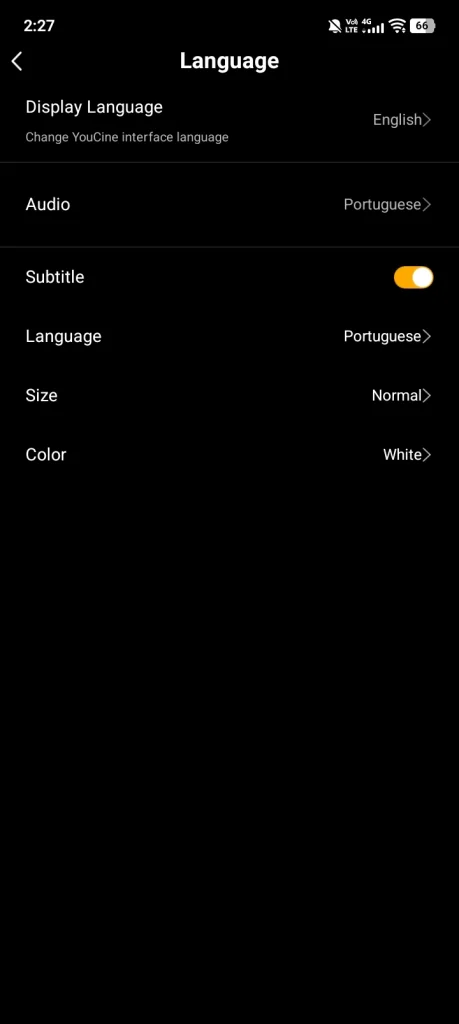
- Start playing the title. The subtitle controls generally are not available until playback has begun.
- Tap the screen once to bring up the player controls.
- Open the subtitle or CC option — usually a speech-bubble or “CC” icon, sometimes inside a settings menu.
- Pick a language from the list. Only languages the source carries will appear.
On most builds this choice is remembered for the session but not permanently, so you may need to repeat it per title. If your build has a default subtitle language in its main settings, set it there once instead.
Subtitle Language vs Audio Language
These are two separate settings and people mix them up constantly.
|
Setting |
Controls |
Where to find it |
|
Subtitle track |
The text on screen |
Player controls, subtitle or CC icon |
|
Audio track |
The spoken language — original or dubbed |
Player controls, audio or speaker icon |
|
App language |
The menus and buttons of the app itself |
App settings, usually under Language |
A common situation: a film plays with Portuguese audio and you want English subtitles, or the reverse. Both are available independently on titles that carry multiple tracks — you are not restricted to matching them.
Changing the app language does not change either of the other two. It only affects the interface.
Subtitles Out of Sync
The most common subtitle complaint, and one of the few that is genuinely fixable.
It happens because the subtitle track was timed against a different cut of the film than the stream you are watching – a different regional release, a version with or without an intro, or simply a slightly different encode.
- Open the player settings while the title is playing.
- Find the subtitle delay, offset or sync control.
- Adjust in small increments. If the text appears before the dialogue, increase the delay; if after, decrease it.
- A second or two resolves most mismatches. If you need more than about five seconds, the track is for a different cut and a different source will be quicker than continuing to adjust.
A drift that gets worse as the film goes on
If subtitles start in sync and gradually slide out, that is a frame-rate mismatch rather than an offset — the track was made for a 25fps version and the stream is 23.976fps, or vice versa. A fixed delay will not correct it, because the error grows.
The practical fix is a different source. Some external players have frame-rate conversion for subtitles, but at that point you are doing more work than the film is worth.
When There Are No Subtitles at All
Three things to try, in order.
- Check for another source. Many titles carry several entries. Open the source or server selector and try the others — subtitle availability often differs between them for the same film.
- Check whether the subtitles are burned in. Some sources ship with subtitles already part of the video image. If you see text on screen but no track listed, that is what is happening – and it cannot be turned off or changed.
- Use an external player with your own subtitle file. Covered below.
Other Playback Problems and their causes
External Players Give You More Control
If subtitles matter to you, this is worth setting up once. VLC and MX Player both handle subtitles better than most built-in players, and both are free on the Play Store.
- Enable external player support in the app settings.
- Start a title and choose the external player when prompted.
- Inside VLC or MX Player you get finer sync control, better appearance options, and — the main advantage – the ability to load your own subtitle file.
To use your own subtitles, download an .srt file for the title, place it on your device, and load it from the player’s subtitle menu. Free subtitle repositories are easy to find and this is entirely legitimate – subtitle files are text, not video.
One caveat: an .srt from the internet is timed for a specific release. You will usually still need the offset control.
Subtitle Appearance
Worth setting once if you watch on a TV from across a room, or on a phone in bright light.
- Font size – the default is often too small on a television.
- Text colour and outline – a black outline or drop shadow makes white text readable against bright scenes. This helps more than increasing size.
- Background box – a semi-transparent panel behind the text. Less elegant, far more readable on low-quality streams.
- Position – raising subtitles slightly avoids clashing with on-screen channel logos.
Legendas em Português and Other Languages
The app originated in the Brazilian market, so Portuguese subtitle and audio tracks are more consistently available than most other languages — particularly on Brazilian and Latin American content, where you will often find both a dubbed audio track and a subtitle track on the same title.
Two things worth knowing if Portuguese is your main language:
- Brazilian Portuguese and European Portuguese tracks are both labelled “Português” on many sources, with no distinction. If a track reads oddly, check whether another entry for the same title carries the other variant.
- The interface language and the subtitle language are separate. Setting the app to Portuguese does not select Portuguese subtitles, and vice versa.
For other languages, availability depends entirely on the source. Spanish and Hindi are reasonably common; smaller languages are sporadic. There is no master list, because it varies title by title.
Quick Reference
|
Problem |
Most likely cause |
Fix |
|
No subtitle option listed |
Source carries no subtitle track |
Try another source for the same title |
|
Subtitles a second or two off |
Track timed for a different cut |
Subtitle delay or offset control |
|
Drift that worsens over time |
Frame-rate mismatch |
Different source – an offset will not fix it |
|
Text visible but not selectable |
Subtitles burned into the video |
Nothing. Use a different source if you need them off. |
|
Boxes or question marks instead of text |
Unsupported character encoding |
Open in an external player |
|
Wrong language plays as audio |
Audio track, not subtitle setting |
Change the audio track separately |
|
Subtitles reset every title |
Per-session setting |
Set a default subtitle language in app settings if available |