
YouCine Chromecast: How to Cast YouCine to Your TV
Setting up YouCine Chromecast playback is the quickest way to watch on a big screen when your television cannot run the app itself. That covers every Samsung and LG set sold today, because neither brand can install Android apps at all.
There are two different ways to get the picture across, and most guides treat them as the same thing. They are not. Understanding the difference takes about a minute and it saves a lot of confusion later.
Quick answer
YouCine Chromecast playback works through screen mirroring rather than true casting, because the app does not reliably support the Chromecast protocol. Open Quick Settings on your Android phone, tap the Cast or Smart View tile, choose your device, then play in YouCine. Your phone screen stays on for the whole film.
Does YouCine Chromecast Casting Work Natively?
Probably not, and it is worth checking on your own build rather than trusting any guide including this one.
True casting and screen mirroring are separate mechanisms. With casting, your phone sends the television a stream address and the television fetches the video by itself. Your phone is then free. You can lock it, use other apps, or put it in your pocket. With mirroring, your phone sends a live copy of whatever is on its screen. The phone stays busy for the entire film.
|
How they differ |
Casting (Chromecast) |
Screen mirroring |
|
What gets sent |
A stream address only |
A live copy of your phone screen |
|
Your phone during playback |
Free to use or lock |
Occupied, screen must stay on |
|
Battery drain |
Minimal |
Heavy |
|
Picture quality |
Full source quality |
Re encoded, usually lower |
|
Notifications on the TV |
None |
Everything shows |
|
Does the app need to support it? |
Yes, built in |
No, works with any app |
That last row explains why mirroring is what most people end up using. Casting only works if the app developer builds Chromecast support into the app deliberately. Aggregator apps often skip it, or implement it partially so it works on some titles and fails on others.
How to check your own build
- Start playing anything at all.
- Tap the screen once to bring up the player controls.
- Look for a cast icon, which is a small rectangle with wifi style arcs in one corner.
- If the icon is there, tap it and pick your device. That is proper casting and it is the better experience.
- If there is no icon, or tapping it does nothing, your build does not support it. Move on to mirroring.
Reports vary between versions, which usually means support is either absent or half finished rather than properly built. Do not spend an hour hunting for a setting that is not there.
Which Chromecast Do You Have?
This is the fork that decides everything below, and it catches a lot of people out. Google has sold two very different products under the Chromecast name.
|
What to check |
Chromecast with Google TV |
Older Chromecast dongles |
|
Has a remote? |
Yes |
No |
|
Own interface on screen? |
Yes, a full home screen |
No, just a backdrop |
|
Runs an operating system? |
Yes, Google TV |
No |
|
Can install apps? |
Yes, including sideloaded APKs |
No |
|
Best method for YouCine |
Install the APK directly |
Screen mirroring only |
If your Chromecast came with a remote and shows its own home screen when you switch the television on, it runs Google TV. That means it can install the YouCine APK directly, and you should do that instead of mirroring. The picture will be better and your phone stays free.
If your Chromecast has no remote and shows only a rotating photo backdrop, it is a dongle. It has no operating system and cannot install anything. Mirroring is your only route, and the rest of this guide is written for you.
How to Set Up YouCine Chromecast Mirroring on Android
Five minutes at most. Both devices need to be on the same wifi network before you start.
- Switch on your Chromecast, Google TV or Android TV and make sure it is connected to the same network as your phone.
- Swipe down twice from the top of your phone screen to open Quick Settings in full.
- Find the tile called Cast, Screen cast, Smart View or Wireless projection. The name depends on who made your phone.
- Tap it and pick your television from the list. Your phone screen appears on the big screen within a few seconds.
- Open YouCine and start playing. Turn the phone to landscape so the picture fills the television properly.
- When you finish, open the same tile and disconnect. Mirroring does not always stop by itself.
|
Phone brand |
What the tile is called |
|
Google Pixel and stock Android |
Cast, or Screen cast |
|
Samsung |
Smart View |
|
Xiaomi, Redmi and POCO |
Cast |
|
Oppo, Realme and OnePlus |
Screencast, or Cast |
|
Vivo and iQOO |
Smart mirroring |
|
Motorola and Nokia |
Cast |
If you cannot find the tile anywhere, open Settings and search for the word cast. Every Android build has it somewhere. Some manufacturers bury it under Connected devices or under Display.
One setting worth changing first
Turn on Do Not Disturb before you start mirroring. Everything on your phone screen goes to the television, and that includes every message notification that arrives during the film.
What You Need on the TV Side
YouCine Chromecast mirroring works with more devices than people assume, including televisions that cannot install the app.
|
Device |
Mirroring from Android? |
Worth knowing |
|
Chromecast dongle, any generation |
Yes |
Cheap and it does exactly this one job well |
|
Chromecast with Google TV |
Yes |
Can also install the app directly, which is better |
|
Android TV box |
Yes |
Installing directly beats mirroring every time |
|
Fire TV Stick |
Usually |
Enable mirroring under Settings, Display and Sounds |
|
Samsung Smart TV |
Yes, through Smart View |
Cannot install the app, so mirroring is the answer |
|
LG Smart TV |
Usually |
Screen Share supports Miracast on most models |
|
Apple TV |
No |
Android cannot send AirPlay without third party software |
|
Older TV with no smart features |
No |
Add a Chromecast dongle or use an HDMI cable |
YouCine Chromecast on iPhone: The Honest Answer
If you can borrow an Android phone or tablet, install YouCine there and mirror from that device. Your iPhone is not involved and nothing breaks.
If you have no Android device at all, casting is not the answer and no amount of setup will make it one. Your realistic options are a legitimate streaming service with a proper App Store app, or an Android TV box plugged into the television.
What YouCine Chromecast Mirroring Actually Looks Like
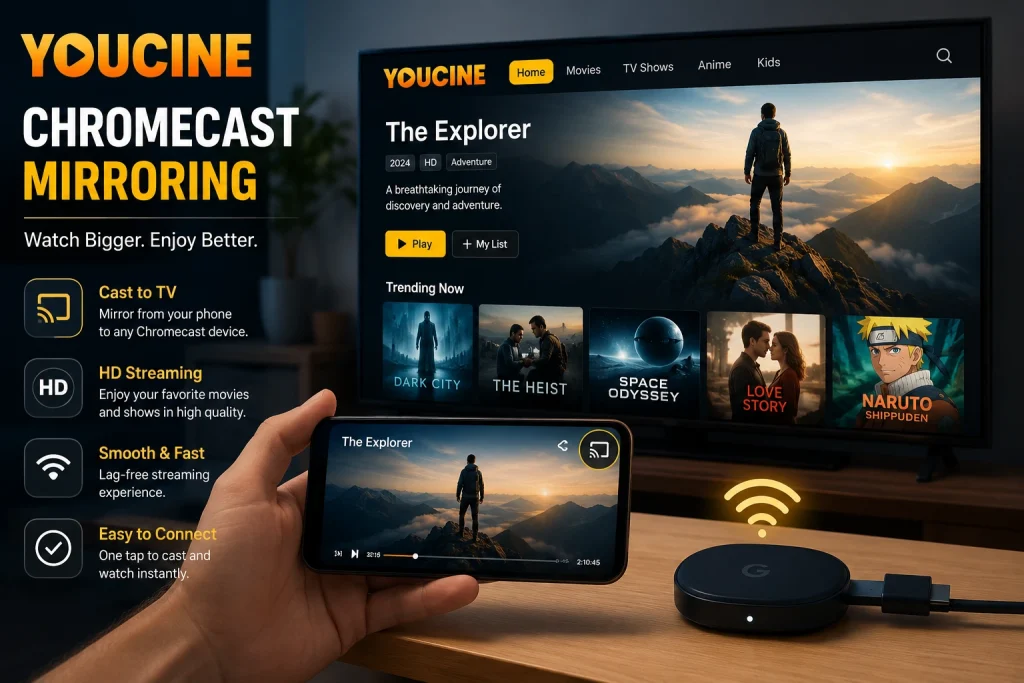
Set your expectations before you start, because mirroring is a compromise rather than a perfect solution.
- Picture quality drops. Your screen gets re encoded and pushed over wifi, so it will not match what the same stream looks like played natively on the television.
- There is a small delay between your phone and the screen. Irrelevant for films, noticeable if you are doing anything interactive.
- Your notifications appear on the television, which is why Do Not Disturb matters.
- Battery drains quickly. Plug the phone in for anything longer than one episode.
- An incoming call takes over your screen, and therefore takes over the television as well.
YouCine Chromecast Not Working? Five Fixes
Work through these in order. The first one accounts for roughly half of all connection failures.
- Check both devices really are on the same wifi network. Many routers broadcast separate 2.4GHz and 5GHz networks under different names, and a phone that quietly dropped onto mobile data will not see the television at all.
- Restart the television device. Chromecasts stop advertising themselves on the network after a while, and a power cycle brings them straight back.
- Turn off any VPN on your phone. A VPN routes your traffic elsewhere, so your phone can no longer see devices on your own local network.
- Check for guest network isolation. If the television sits on a guest network, or your router has client isolation switched on, the two devices are blocked from seeing each other by design.
- Move closer to the router. Mirroring uses a lot of bandwidth, and a weak signal shows up as stuttering or a dropped connection rather than a clear error message.
When to Skip Chromecast and Install Directly
Mirroring is a workaround. If your setup can run the app itself, that route is better in every way that matters. You get full picture quality, your phone stays free, the battery lasts, no notifications appear on screen, and you navigate with a remote instead of a touchscreen.
The simple rule
If your device runs Android TV, Google TV or Fire OS, install the app on it and stop mirroring.
If your television runs Tizen (Samsung) or webOS (LG), you cannot install anything, so mirroring is your option unless you add a box.
A basic Android TV box costs about the same as a takeaway and removes the problem permanently.